Each Deployment Environment in Adaline is a container of specific prompt versions that your AI application or CI/CD pipelines integrate into. This way, you can safely isolate versions of prompts in different environments such as development, testing, and production, etc. Each version of your AI application can be deployed to a different environment and can run on a different version of prompt with one click sync and rollback.

Create New Environment

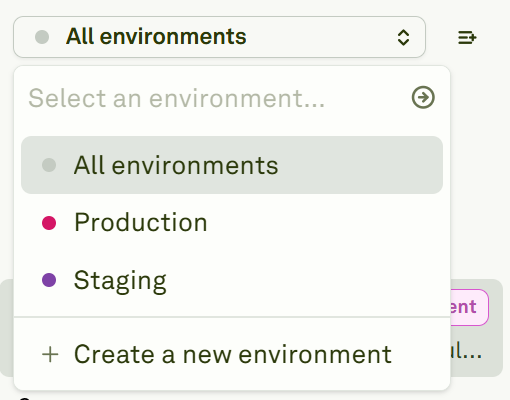
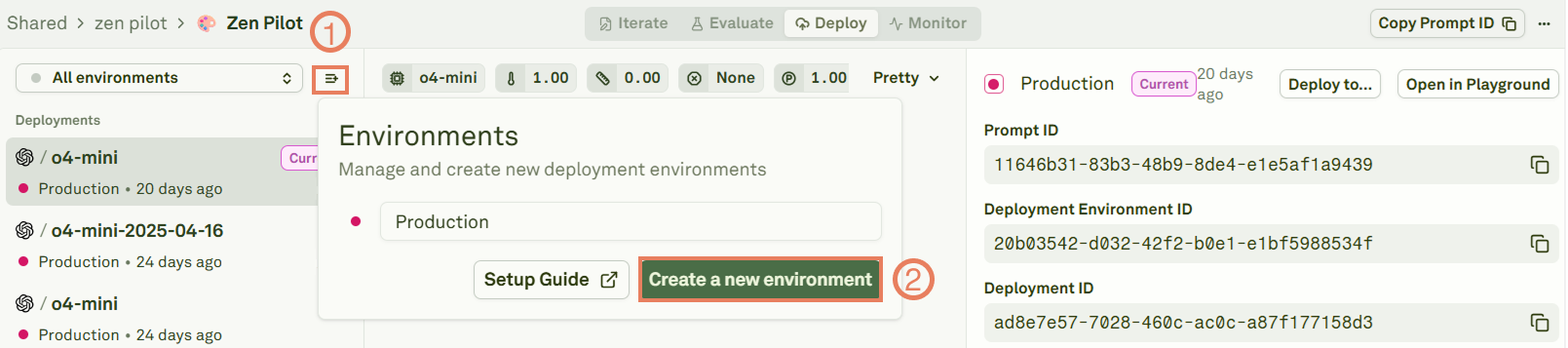
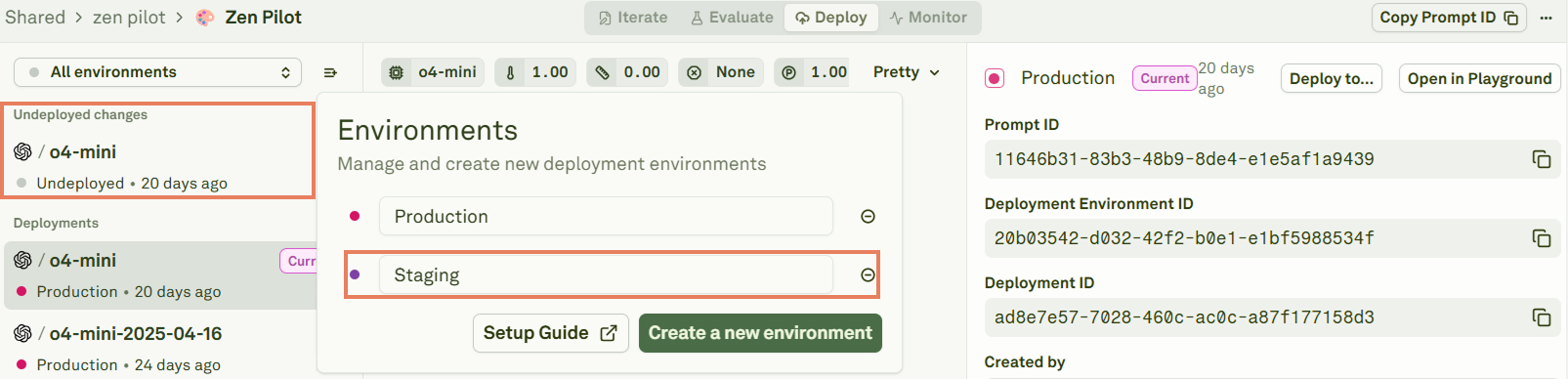
To create a new environment, click on Create a new environment: Create a new deployment environment Rename your new environment: Rename a new deployment environment When you create a new environment, the content of the selected deployed environment is transferred to it. This is why you will see a new space with Undeployed changes. Learn more about deploying your prompts. Adaline shows you all the available environments when you click on All environments: Visualize deployment environments If you click on Create a new environment, Adaline will create a new environment. This is equivalent to the procedure described above.
Delete Environments

To delete an environment, click on the minus sign: Running A Prompt Pn
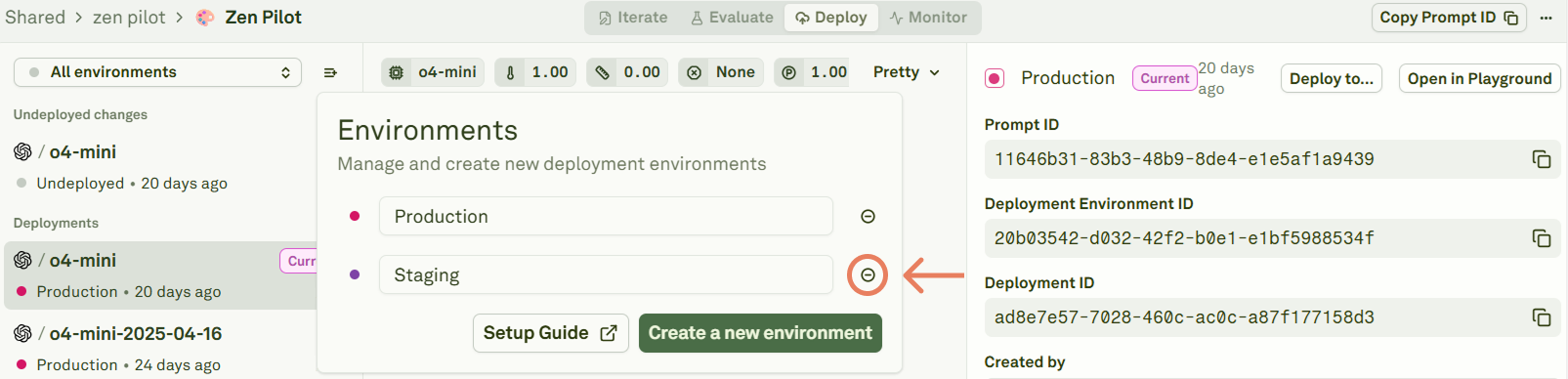
Warning: When you delete an environment, it also deletes all deployments within the same environment across all prompts in the project. Any API or SDK calls to this environment will fail after deletion. This action can not be undone.