

Variable Name Constraints
Variable names must follow specific naming rules to ensure compatibility with Adaline’s system. When creating variables, keep the following constraints in mind:Allowed Characters
Variable names can only contain:- Letters:
a-zandA-Z - Numbers:
0-9 - Underscores:
_ - Hyphens:
-
Valid Variable Names
Examples of valid variable names:{{user_question}}{{product_name}}{{user-id}}{{item_123}}{{my_variable}}
Invalid Variable Names
The following variable names are not allowed:{{user question}}- contains spaces{{user.question}}- contains a period{{user@name}}- contains special characters{{user/name}}- contains a slash{{user:}}- contains a colon
Creating Text Variables
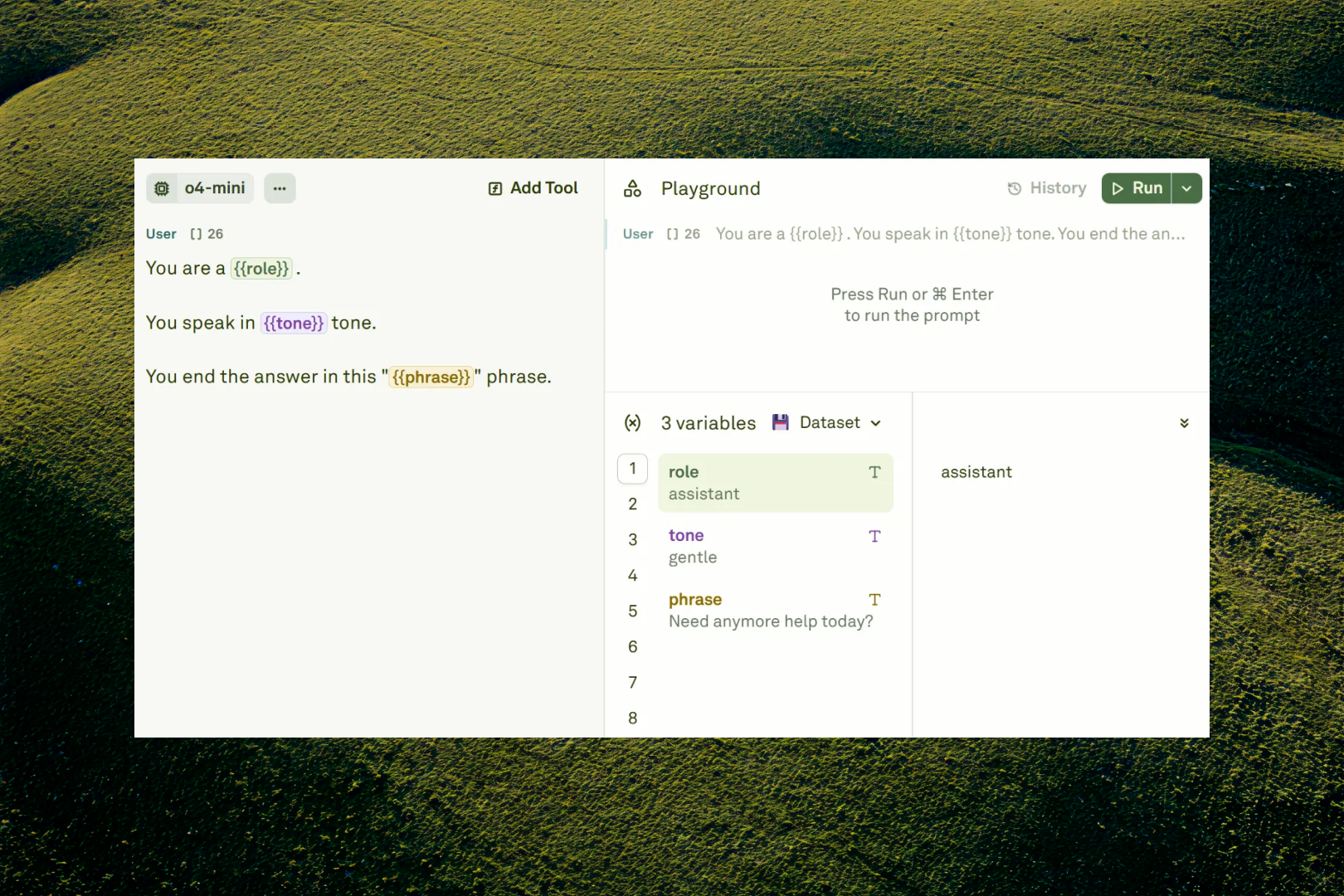
Text variables are simple to create. The following is an example of a prompt without variables:Example of a prompt without variables:
Example of a prompt with variables:
{{persona}}. You can manage the content for each variable in the Variable Editor:
Creating Image Variables
To create image variables follow the steps below: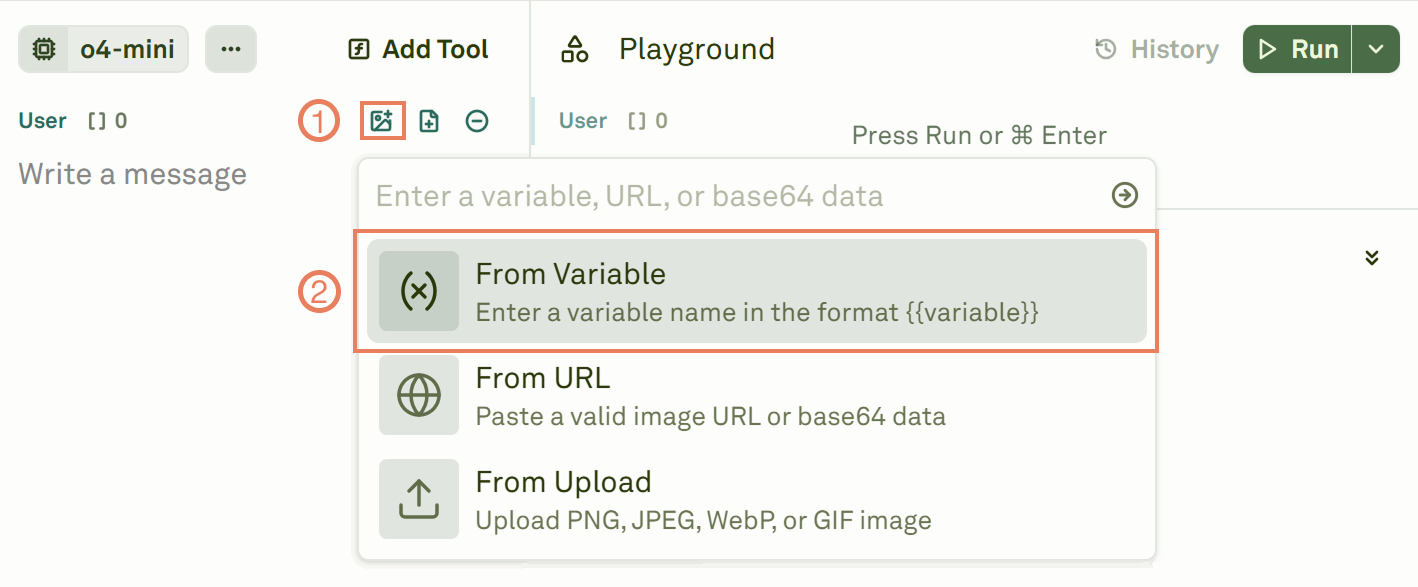
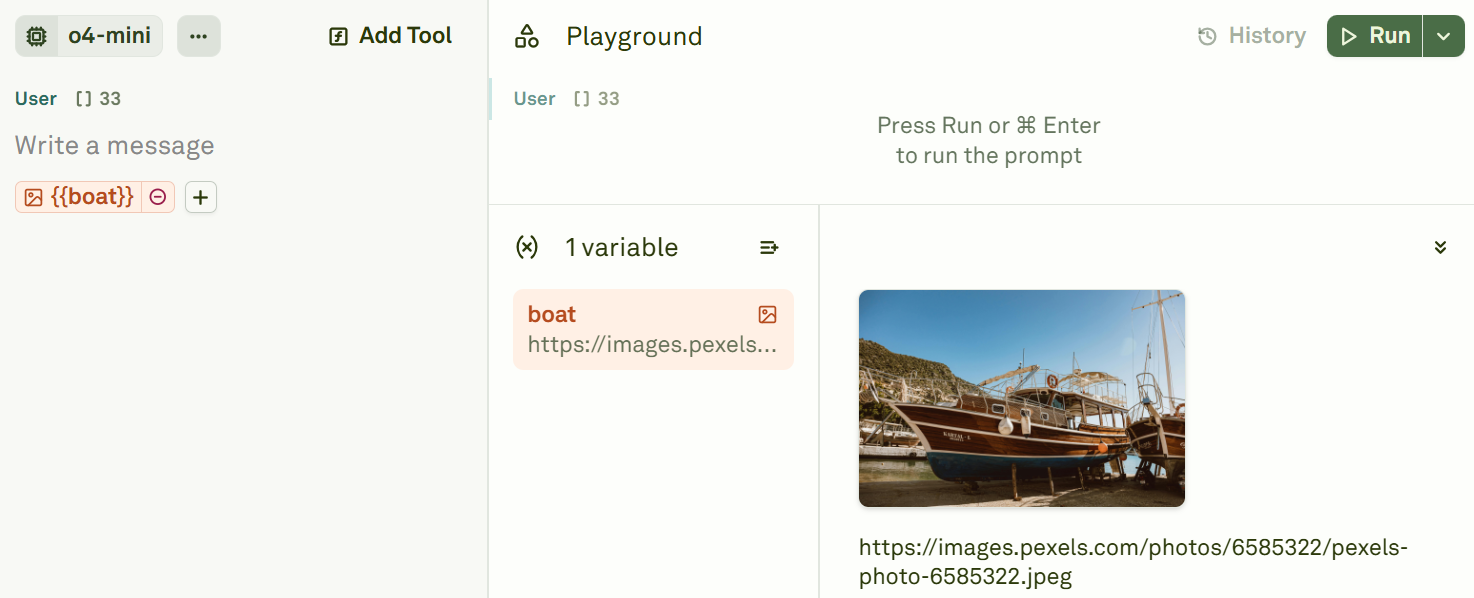
Give a name and attach the image variable
Define a name for the image variable and attach it to the message.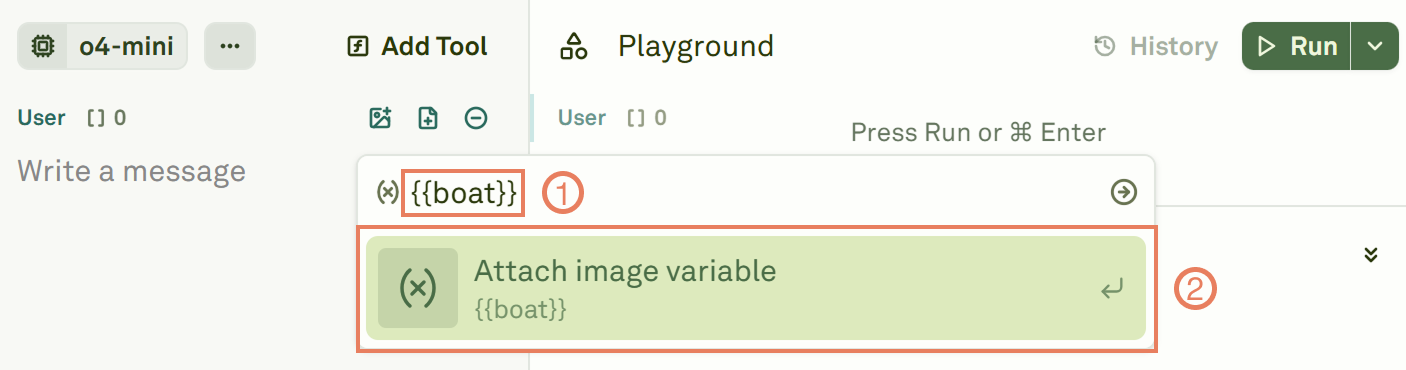
Creating PDF Variables
To create PDF variables follow the steps below: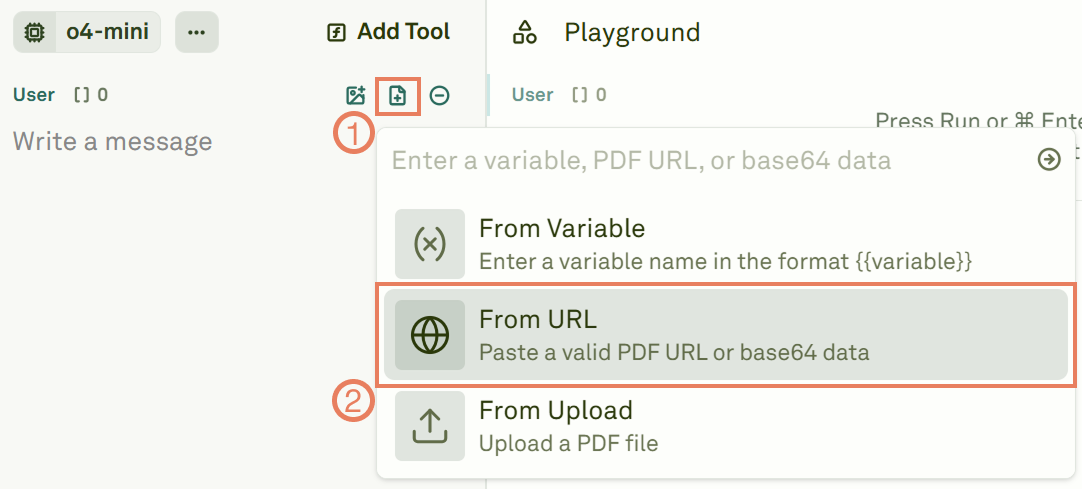
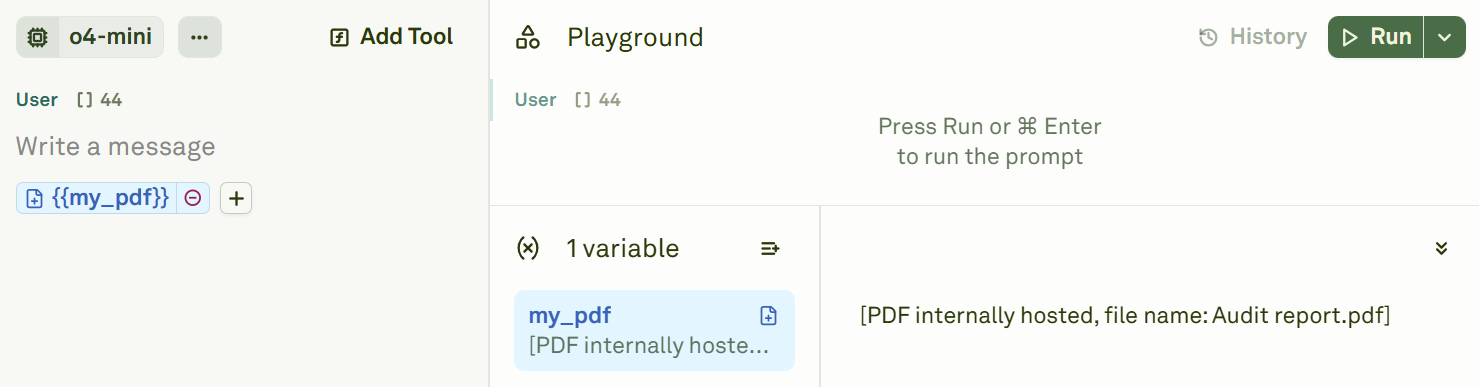
Give a name and attach the PDF variable
Define a name for the PDF variable and attach it to the message.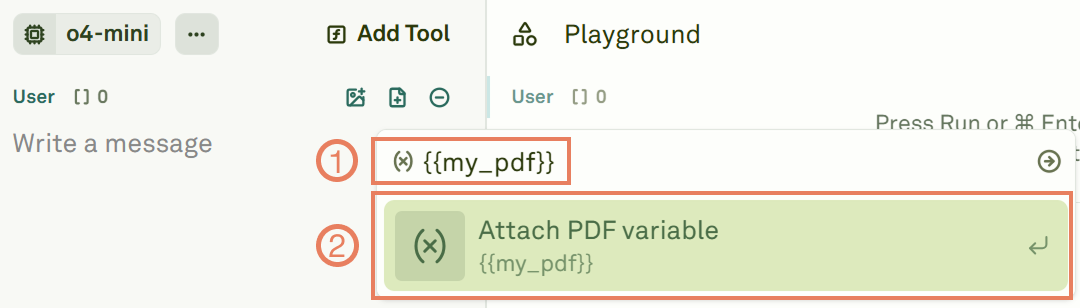
Variable Sources
Variables can have different sources depending on your needs:- Static Values: Direct text, image, or PDF content
- API Variables: Fetch live data from external HTTP endpoints
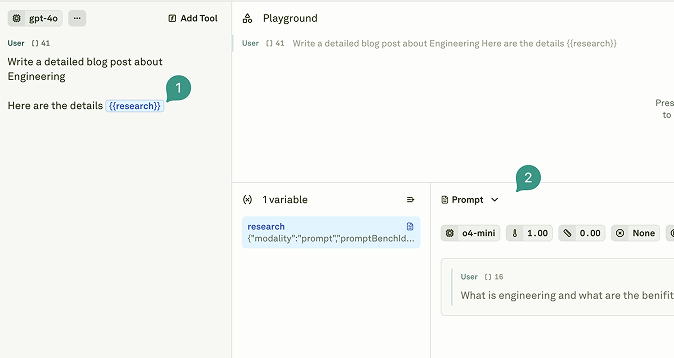
- Prompt Variables: Use the output from another prompt in your project
Creating API Variables
API variables allow your prompts to interact with external systems in real-time by fetching data from HTTP endpoints at runtime. To create API variables and use external endpoints as a source, follow the steps below:Choose API as source for the variable
Select API as the source type. This enables the variable to fetch data from external HTTP endpoints.
Configure the API endpoint
Define the API configuration in the Variable Editor: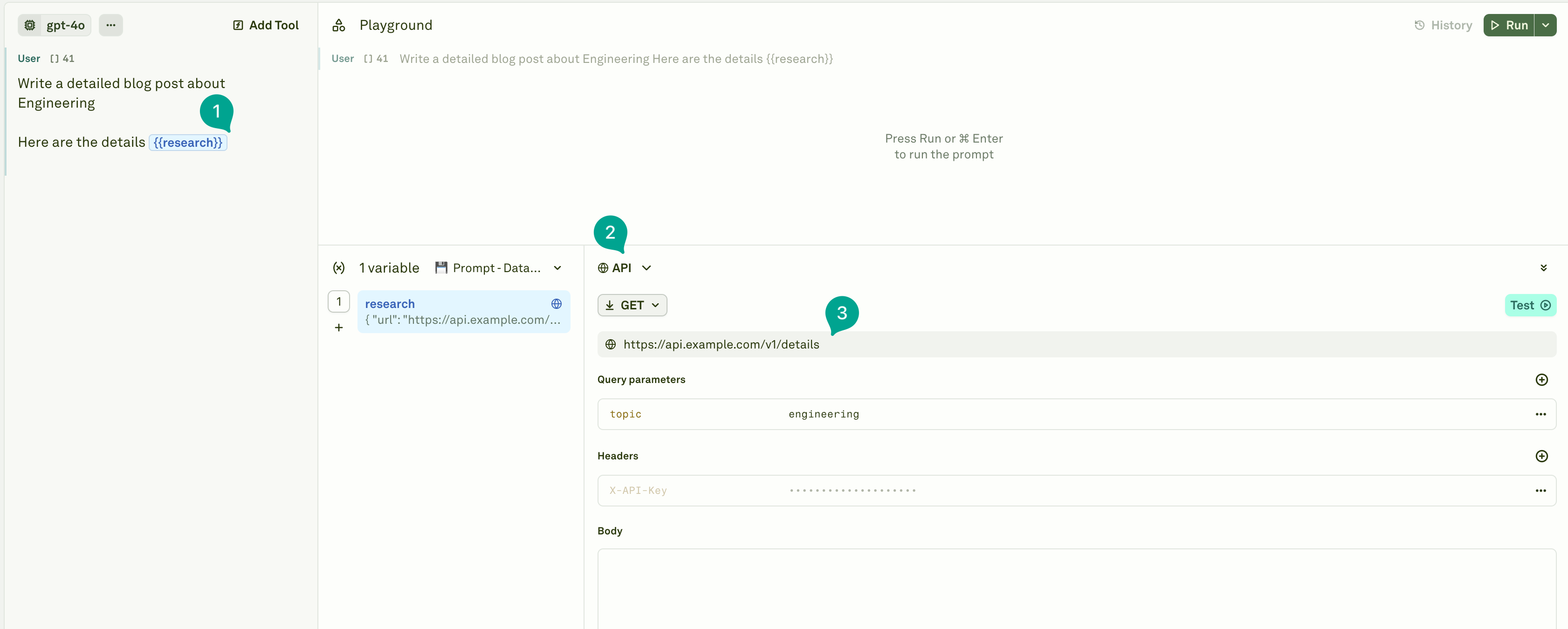
- URL: Configure the endpoint URL
- Method: Configure the HTTP method from GET, POST, PUT, PATCH, or DELETE
- Headers: Set request headers (use
secretHeadersfor sensitive keys/tokens) - Body: Configure the request body for POST/PUT/PATCH requests
TIP: Use placeholders like
{{columnName}} within the API configuration (URL, headers, query params, or body). These are automatically resolved from your dataset columns at runtime.Creating Prompt Variables
Prompt variables enable Prompt Chaining, where the output of one AI instruction serves as the input for another. This allows you to build agent-like workflows and modular prompt architectures. To create prompt variables and link other prompts, follow the steps below:Choose prompt as source for the variable
Select Prompt as the source type. This enables the variable to use the output from another prompt within your project.
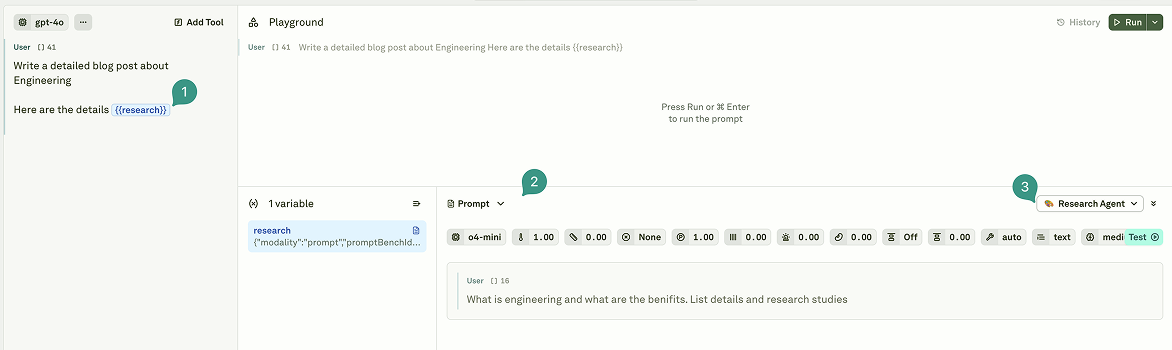
Tips: When using prompt variables:
- Data from the parent dataset is automatically passed down to the referenced prompt
- Child prompts can reference any column available in the parent dataset
- The system automatically detects and blocks circular dependencies