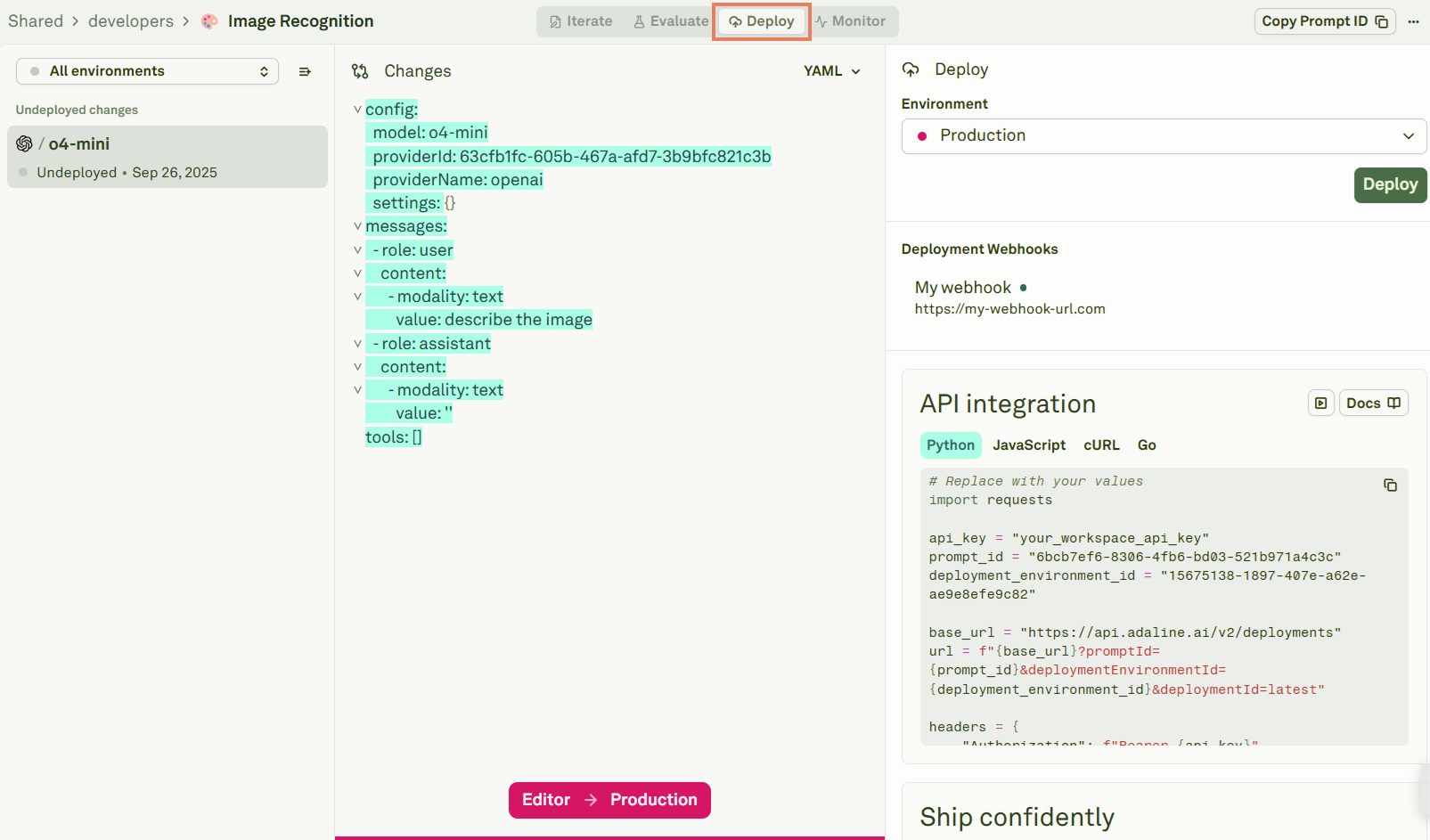
NOTE: The image above shows, at the bottom, that you are trying to deploy from the Editor to the Production environment (Editor -> Production). This is only a visual popup to help you see what you are going to do. It is not clickable.
- Create new deployment environments.
- See all the prompts deployed into the available environments, and rollback to previously deployed prompts.
- The blue-highlighted content is the one that will be deployed into the environment. This shows the diff from what will be deployed and what not on the side of:
config: The LLM you have chosen with its configuration.messages: The messages of the prompt.role: The roles of the messages.modality: The modality used by the LLM (text, image, of PDF).tools: The tools eventually used.
- The environment in which you are about to deploy. Whenever you want to deploy a prompt, Adaline automatically creates a production environment for you and consider you will deploy to it. Learn more about hot to create other deployment environments in Environments.
- The available deployment environments.
- The deployment webhooks.
- The code you can use to integrate your deployed prompt into you AI application.
Deploy to the Chosen Environment
To actually deploy your prompt to the chosen environment, click on Deploy: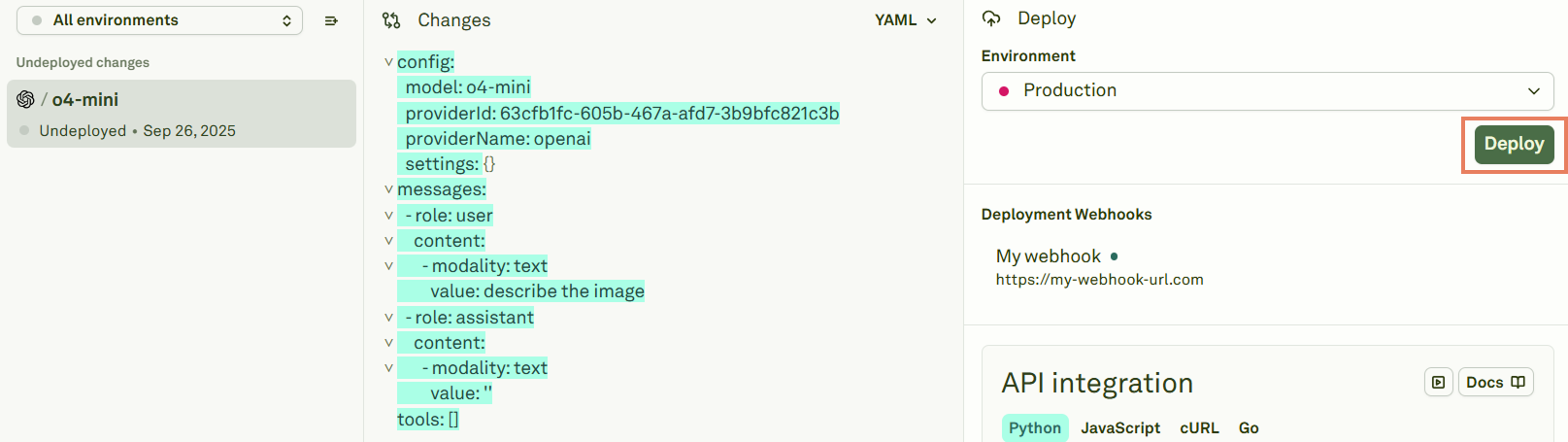
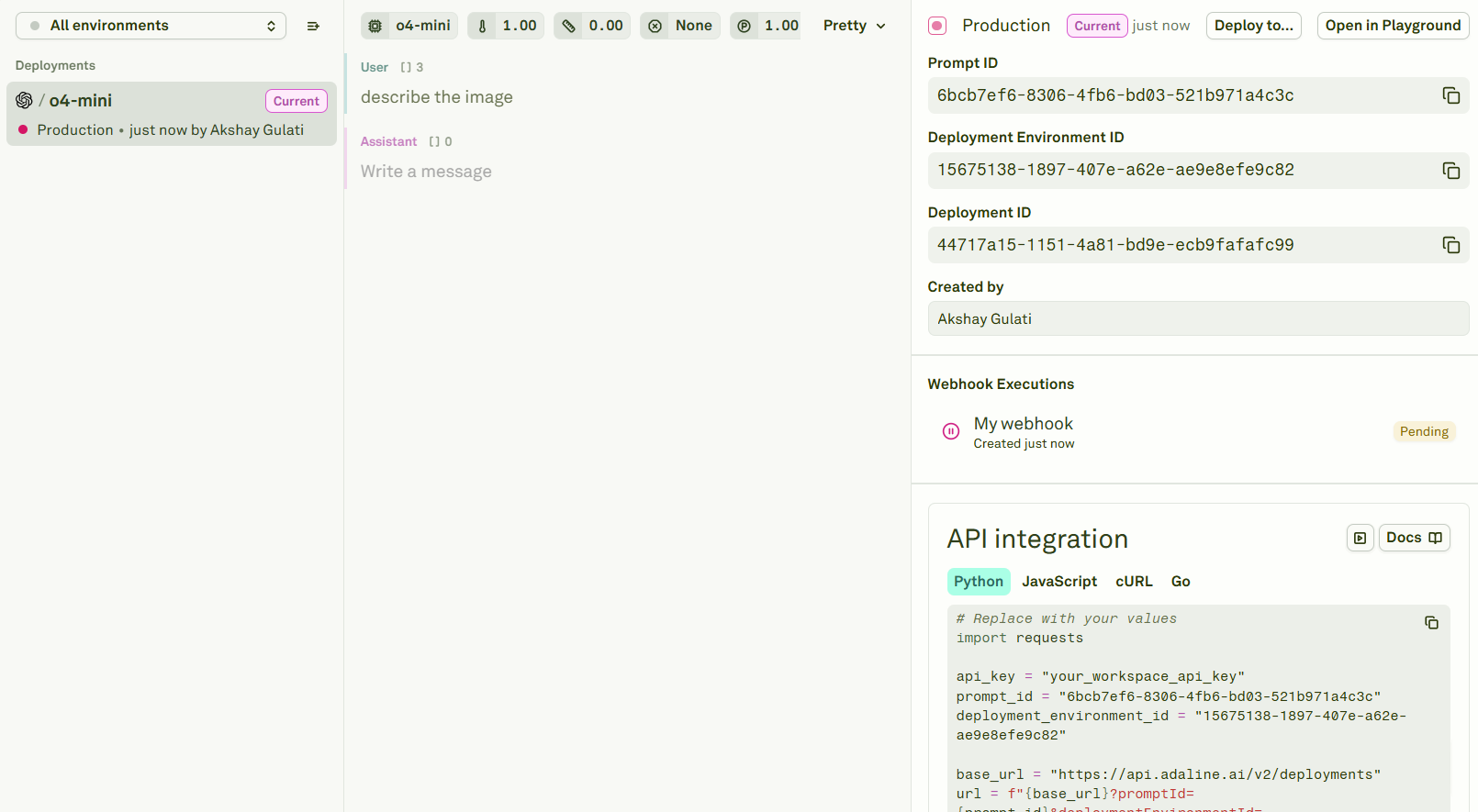
- Several IDs to use in your code to integrate the deployed prompt into your AI applications. Adaline automatically fills the code in the API Integration sections with those values.
- Webhooks executions and their status.
Deploy to Another Environment
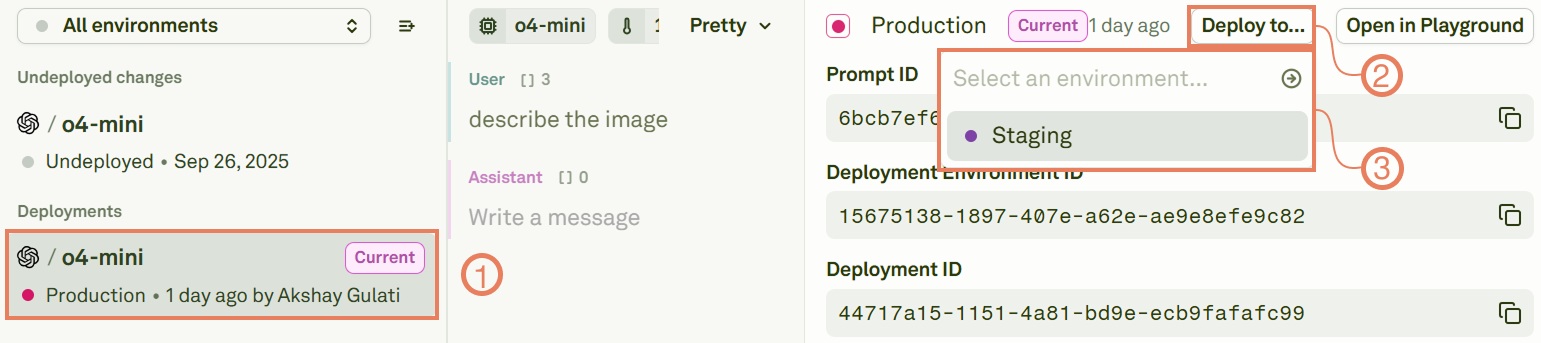
Creating multiple deployment environments allows you to manage your deployment pipeline. To deploy a prompt to another environment, select the prompt and click on Deploy to…: