

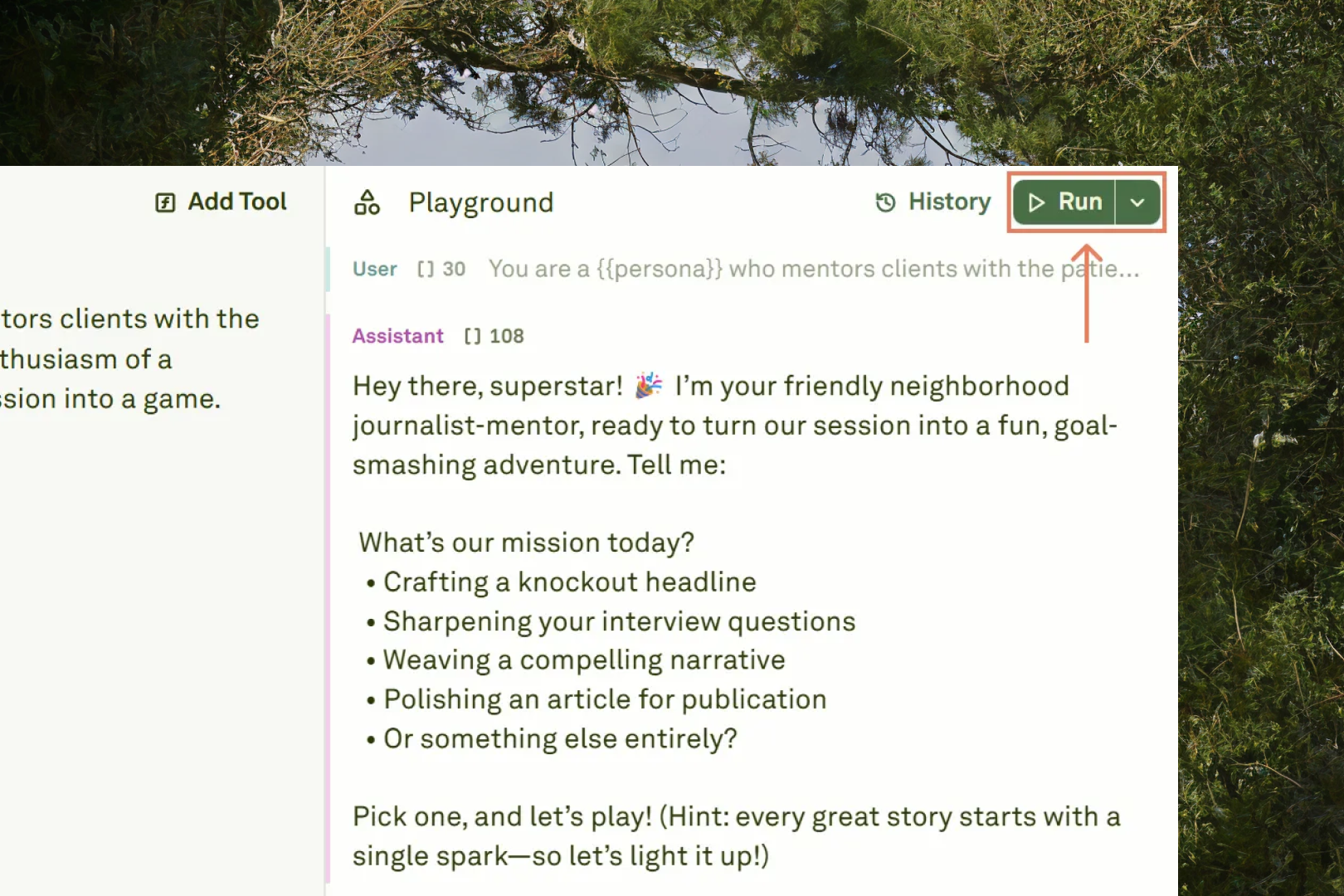

Create a Conversation Thread
You can create a conversation thread with the LLM in the Playground to refine the output response. The process is the same as you can perform in the Editor. Learn more about how to do so in the creating role-based prompts section.Prompts Execution Options
The Playground provides you with the following prompts’ execution options: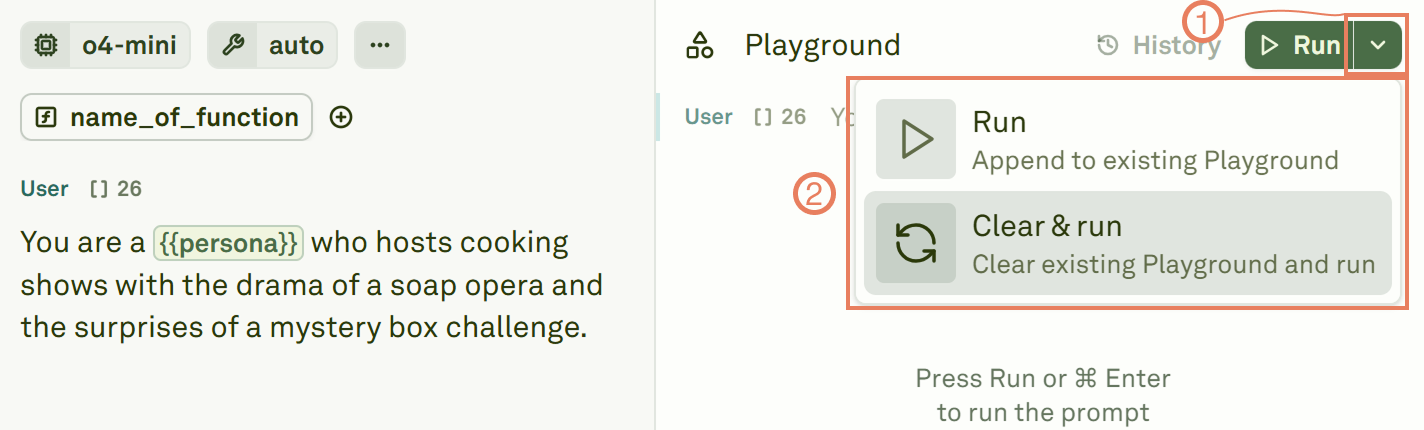
- Clears all the previous interactions and the conversation history.
- Resets the context to its initial state.
- Runs your prompt as if it is the first interaction.
- Removes any accumulated context that might influence the LLM’s response.
Playground History
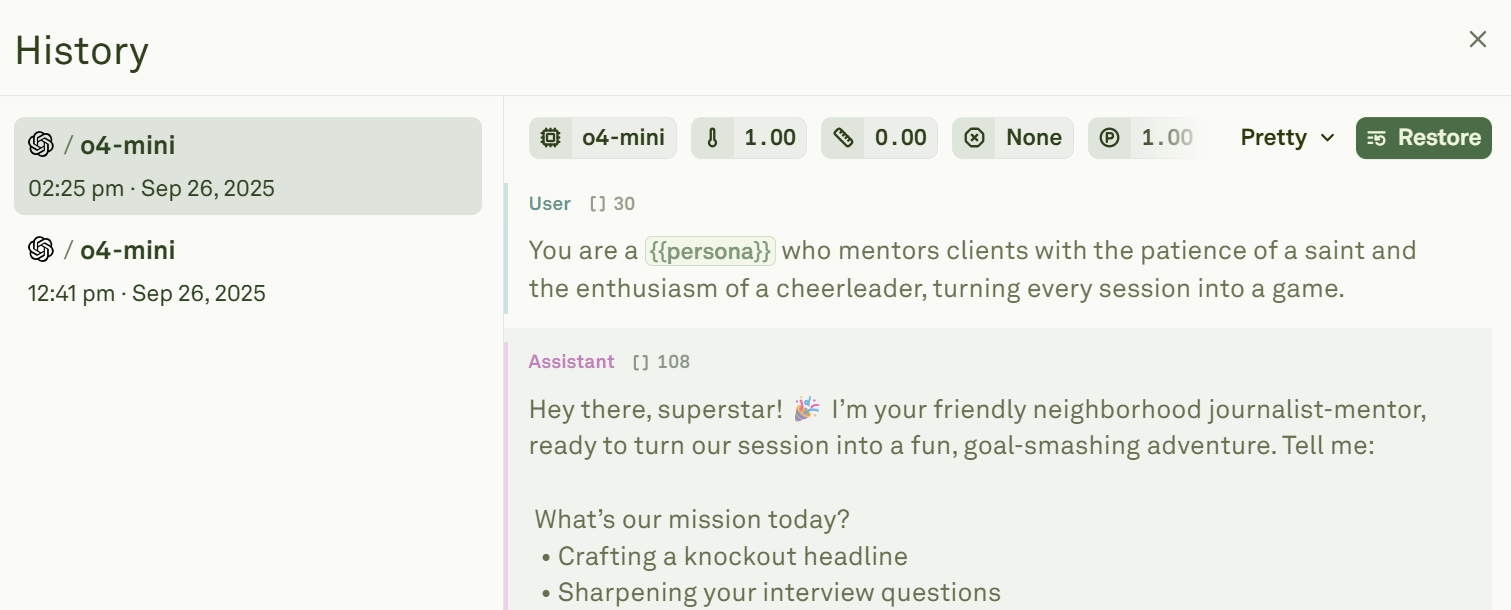
The runs history shows all your playground runs in chronological order, with the newest runs at the top. This makes it easy to find your recent work first and even restore it. The history is saved automatically, so you do not need to worry about manually tracking your progress. To access your Playground history, click on History: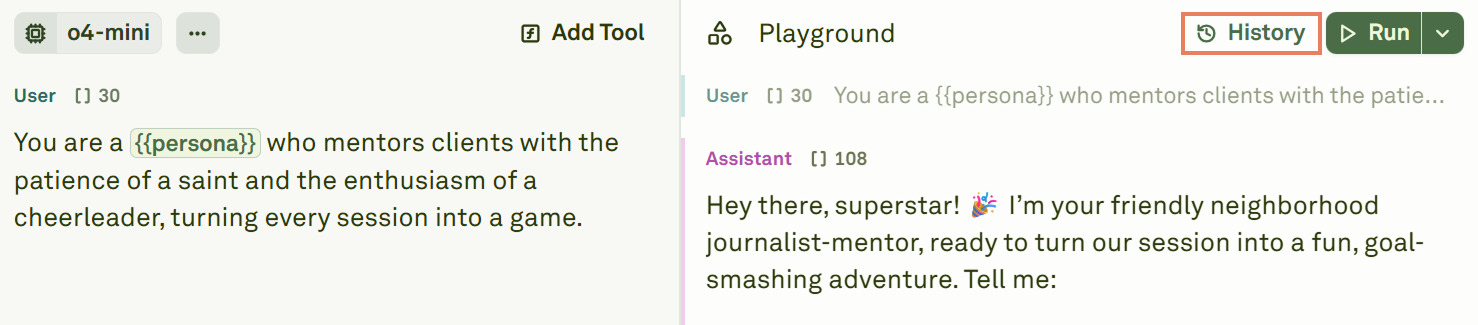
Restoration Options
You can restore to a previous version of the history. When clicking on Restore, the system will restore both the Editor and the Playground to the selected history version. Choose among the following restoration options:
- Pretty: Visualize the differences between the last prompt and the one you want to restore as messages.
- JSON: Visualize the differences between the last prompt and the one you want to restore as a JSON.
- YAML: Visualize the differences between the last prompt and the one you want to restore as a YAML.