

Overview
Dynamic columns transform static datasets into dynamic data sources. Instead of manually entering values, you can configure columns to:- API Variables: Fetch data from external HTTP endpoints
- Prompt Variables: Execute other prompts and use their outputs
Column-Level Configuration
Each column in a dataset can be configured as a dynamic column. To set up a dynamic column: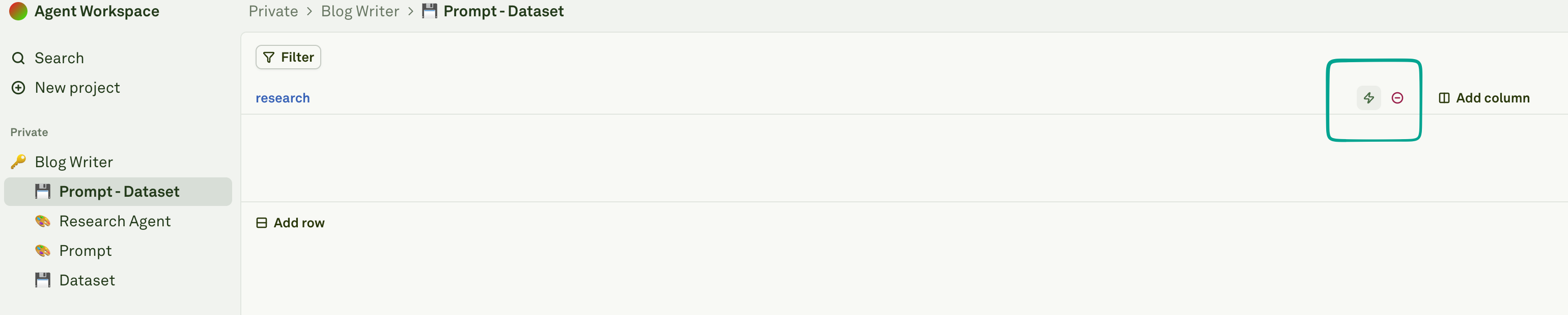
Select the source type
Select the source type from the dropdown:
- API Variable: Fetch from an external HTTP endpoint
- Prompt Variable: Execute another prompt and use its output
Configure the source
Configure the source type:
For API Variables: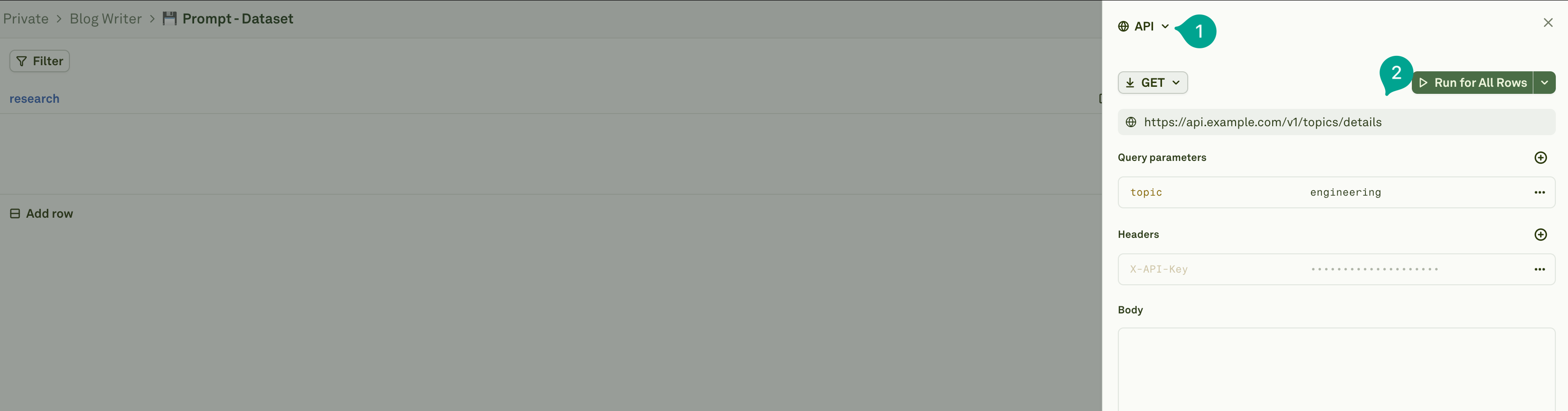
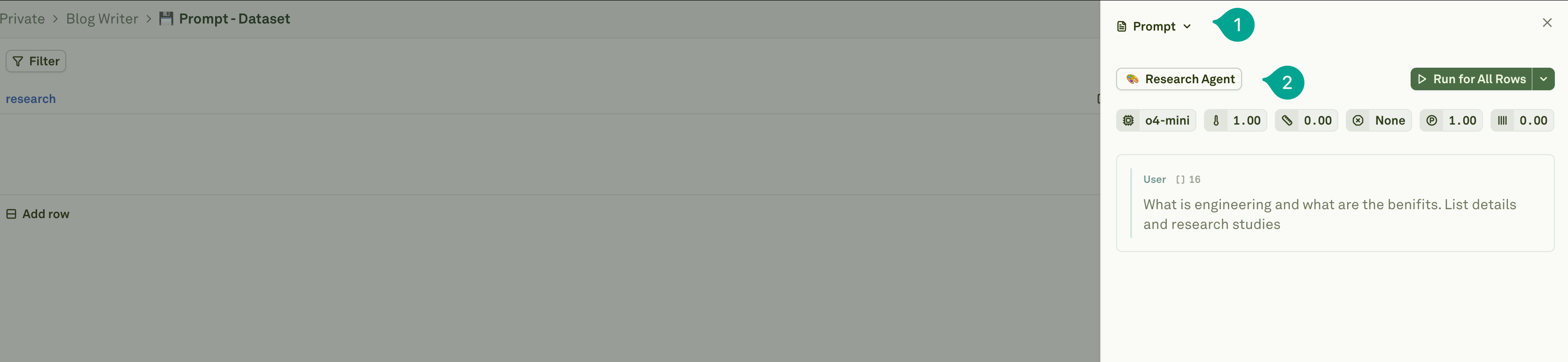
- Set the URL, HTTP method, headers, and body
TIP: Use placeholders like
{{otherColumn}} to reference other dataset columns on api configuration.- Select a prompt from your project
- The prompt will have access to all columns in the current dataset row
Running Dynamic Columns
After configuring dynamic columns, you need to fetch their values. You can run dynamic columns in three ways: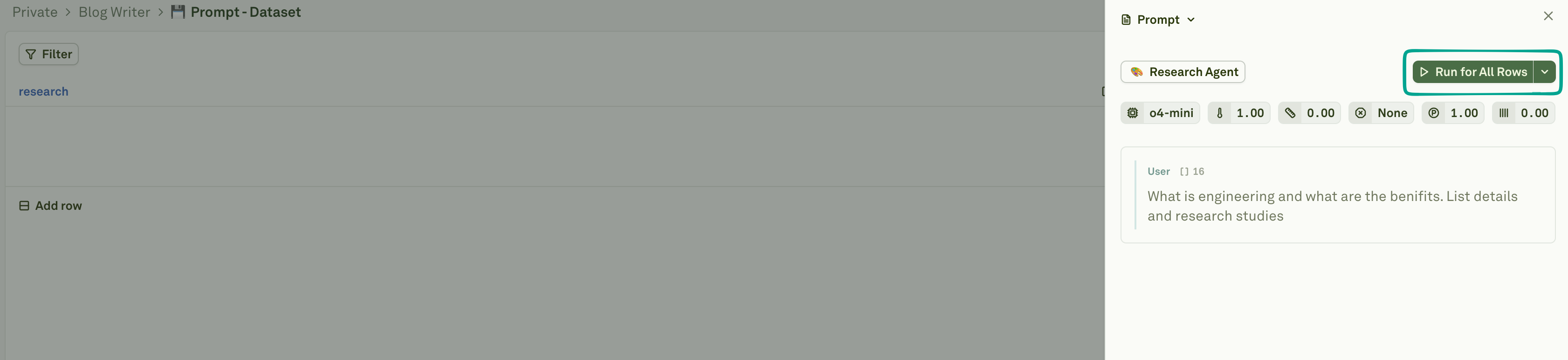
Run for All Rows
Execute the API calls or prompt executions for every row in the dataset. This is useful when:- You want to populate all dynamic columns.
- You need fresh data for all test cases
- You are setting up a new dataset with dynamic sources
Run for Failed Rows
Execute only for rows where previous attempts failed. This is useful when:- Some API calls timed out or returned errors
- You want to retry failed executions without re-running successful ones
- You are debugging specific rows that had issues
Run for First Row
Execute only for the first row. This is useful when:- You want to test your configuration before running on all rows
- You are debugging the API or prompt setup
- You want to verify the data structure before bulk execution
How It Works
API Variable Columns
When a column is configured as an API variable:- Placeholder Resolution: Placeholders in the API configuration (like
{{userId}}in the URL) are replaced with values from other columns in the same row - HTTP Request: The system makes the HTTP request with the resolved configuration
- Response Storage: The API response is stored in the column cell for that row
- Persistence: The fetched value remains in the dataset until you refresh it
Prompt Variable Columns
When a column is configured as a prompt variable:- Data Inheritance: All columns from the current dataset row are available to the referenced prompt
- Prompt Execution: The system executes the selected prompt with the row’s data
- Output Storage: The prompt’s output is stored in the column cell for that row
- Persistence: The result remains in the dataset until you refresh it
Child prompts linked dataset are ignored, variables referenced in child prompt must be present in the parent prompts linked dataset.
Execution Behavior
- Row-Level Execution: Each row triggers its own independent API request or prompt execution
- Sequential vs. Parallel: Dependent columns (where one references another) run sequentially, while independent columns run in parallel
- Error Handling: Failed executions are marked, allowing you to retry only failed rows
- Caching: Fetched values are stored in the dataset, so subsequent evaluations use cached values unless refreshed
Best Practices
- Test First: Always use “Run for First Row” to verify your configuration before running on all rows
- Handle Failures: Use “Run for Failed Rows” to retry failed executions without re-running successful ones
- Performance: Consider the number of API calls or prompt executions when running for all rows on large datasets
Integration with Evaluations
Dynamic columns work seamlessly with evaluations:- Pre-population: Auto fetches values for all rows before running evaluations to ensure consistent data
- Real-time Data: Use API variables to fetch fresh data for each evaluation run
- Prompt Chaining: Use prompt variables to build complex workflows where one prompt’s output feeds into another